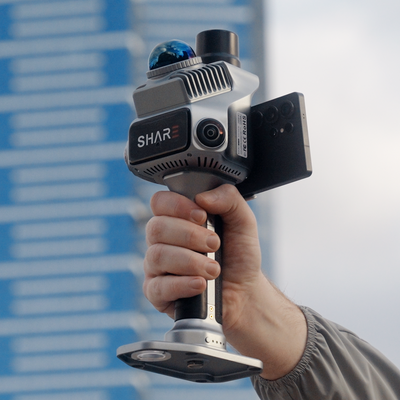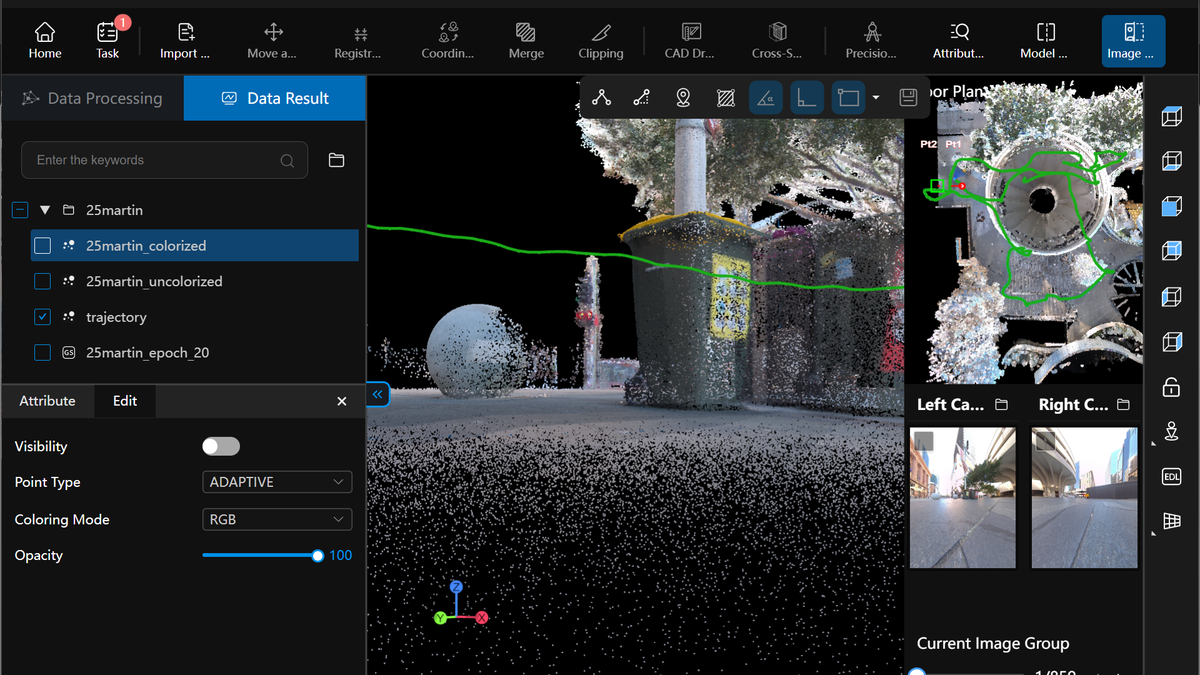
SHARE Point Cloud Studio is the office half of a C1 or C1 Pro job. Capture on the scanner. Solve, crop, measure and export on the desktop. No extra SHARE licence fee. We install it at handover.
Studio 2.6 is the update that matters if you have been joining two walks in CloudCompare, or dropping a relative cloud onto a project grid by hand. Registration and coordinate transform now live in Studio. PPK processing is in the same release. SHARE's next tutorial covers the PPK click-path. We will not invent that UI here.
Download current builds from SHARE's software page. Current line: 2.6.0, with 2.6.1 as a small 3DGS fix pack.

What 2.6 added
From SHARE's own 2.6.0 note:
- Point cloud registration
- Coordinate transformation from control points
- PPK processing
- Navigation mouse support
- Panorama stitching on S100-32 PRO and C10-32PRO only
- Measurement, section, RTK and crop improvements
- German and Portuguese language packs
- Bug fixes
C1 and C1 Pro crews should care about registration, transform, PPK and the measurement/section work. Panorama stitching is not a C1-class feature.
2.6.1 is a maintenance build. SHARE lists three fixes: lag when scaling or panning a 3DGS model, point clouds that sometimes fail to display, and the camera jumping when a 3DGS model switches to first-person. If you have not hit those, SHARE says stay on 2.6.0.
Register two walks as one cloud
This is the tool for a building you scanned in two sessions, a foyer plus a plant room, or a handheld walk that needs to sit against another SHARE cloud.
SHARE's V2.6 tutorial:
- Open both clouds. Pick Point Cloud registration on the top toolbar.
- Choose a base cloud. It stays fixed and keeps its coordinates.
- Choose the cloud to register. That is the one that moves.
- Confirm. Base on the left, moving cloud on the right.
- Pick three or more matching point pairs. Green means the pair is good enough to continue. Red means pick again. Use locate if you lose the feature. Use reset if a click was wrong.
- Run registration preview. Check the join.
- Open show reports for the registration error. Copy it if you need it on the job file.
- Confirm and export.
Use it after a clean walk, not instead of closing loops on site. A drifted corridor still drifted after you click register.
Sit the cloud on known control
Coordinate transform is the tool for a cloud that needs to land on a project grid you already hold: survey marks, a CSV of easting, northing and elevation.
SHARE's V2.6 tutorial:
- Select the point cloud under point cloud file.
- Load a control point CSV. Column order: point name, easting, northing, elevation.
- Click locate beside a control point, then left-click the matching position in the cloud. Repeat for the remaining marks.
- Click calculate transformation parameters. Studio computes translation, rotation on each axis, and scale.
- Reset parameters if you need to start again.
- Transformation preview to compare against the original. Switch back to the original cloud if you want another look.
- Save when the preview is right.
C1 Pro already takes an AUSCORS NTRIP fix in the field. Transform is still useful when the client grid is not the walk you started in, or when C1 data needs tying to marks after the fact.
What else is in the current line
PPK. In 2.6. SHARE's registration video ends by pointing at coordinate transform. The transform video ends by pointing at PPK as the next tutorial. Until that lands, treat PPK as available in Studio, and ask us to walk it on a C1 Pro or C10 job rather than guessing the panel.
2.5.1 (still worth having if you skipped it): mapping quality on multi-storey buildings, floor layering, floor merging, and resumable software downloads.
2.5.0 brought CAD plan and section drafts, RCS export for AutoCAD, faster dynamic-object removal, and 3DGS moved into the same processing pass as the cloud. Those stay the day-to-day tools for renovation and BIM underlays.
SHARE's scenic S100 clip is a processed outdoor colour and 3DGS walk, not a Studio lesson. Useful as a feel for vegetation and path walking. For a school courtyard or apartment, C1 Pro is the unit we bring.
Office machine SHARE lists
From the current download page. Treat as SHARE's recommendation, not a sales spec.
- Windows 11 64-bit (some Windows 10 setups fail)
- NVIDIA RTX 3060 or above
- 8 GB dedicated GPU memory for point cloud mapping, 12 GB for 3DGS
- 64 GB RAM
- 100 GB free disk
- 1920 x 1080 or higher
3DGS still needs the capture interval and cameras to support it. C1 Pro's 1-inch mechanical shutters are the colour set we put on splat work.
What we do with it at handover
Every SHARE C1 and C1 Pro we supply includes Studio and 12 months MapShare Studio. We install Studio, walk a sample project through colour, crop and export, and show how a finished SHARE project becomes a client link instead of a ZIP. This apartment as-built is a public example.
If 2.6 registration or transform is how you will join a drone block or a client grid, say so when you book a demo. We will run those two tools on a cloud from your site, not a brochure dataset.
C1 · C1 Pro · C1 series · SHARE Studio download
Read next: C1 vs C1 Pro · scan checklist · as-built interiors
FAQ
Do I pay extra for Studio 2.6?
No extra SHARE licence fee. Download the current build from SHARE. We set it up with the scanner.
Does registration replace a clean walk?
No. Close loops on site. Registration joins two solved clouds. It will not repair a smeared corridor.
Can C1 data sit on a project grid without C1 Pro?
Yes, with control marks and the new transform tool, or with the C1 RTK module. C1 Pro is the shorter path when the walk already goes outdoors on AUSCORS.
Should I install 2.6.1 today?
Install 2.6.0 if you are still on 2.5.x. Add 2.6.1 if 3DGS pan, missing clouds or first-person camera jump showed up after 2.6.0.