
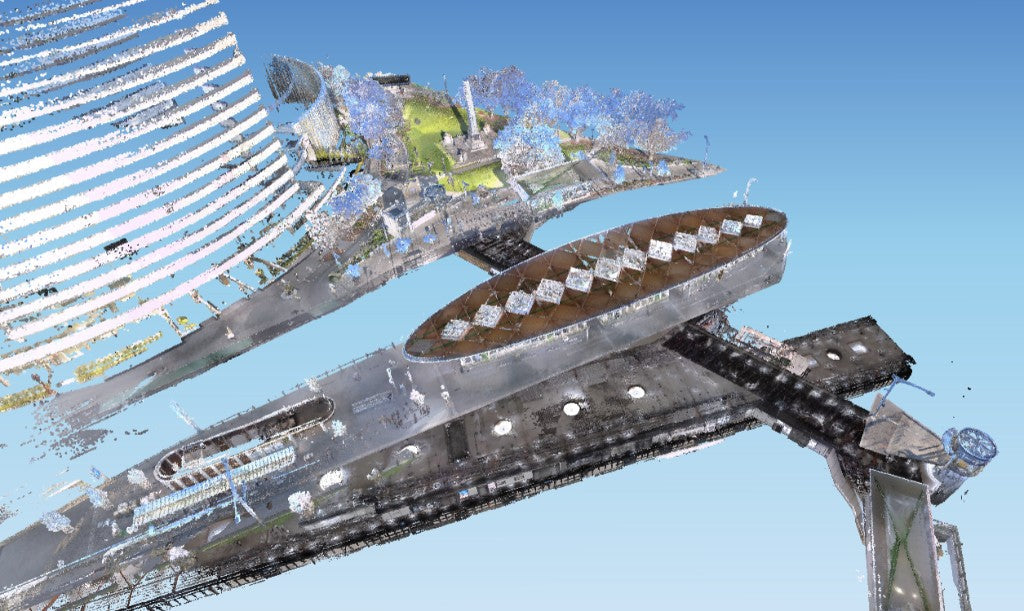
Trust in a handheld cloud is earned on site, not in the marketing PDF. This is the list we walk through on SHARE C1 and C1 Pro handover. Use it before you send the client a MapShare link, and before you call the as-built done.
If you still fly, keep your aerial QA. This page is the ground walk.
Before you press start
Access. Locked doors kill more interior jobs than the LiDAR. Walk the route. Note PPE, live plant and rooms you will not re-enter.
Model. C1 if the day is indoor. C1 Pro if you need AUSCORS on the same traverse. Spare battery if the floor plate is a full visit.
Init. SHARE's own guides: start in a feature-rich spot, not a glass lift lobby or an empty car park. Keep a metre or so from a blank wall. Avoid starting next to a crowd of moving people.
RTK (C1 Pro). Account on, status fixed, before you leave the open sky. Setup is quick. No base station to level. If the job is indoor-only on C1, know how you will tie the cloud (GCPs, later RTK module, or relative-only deliverable).
Photo interval for 3DGS. If you want a Gaussian splat in MapShare, Studio needs enough stills. SHARE's 3DGS tutorial asks for a half-second photo interval and colourisation plus undistorted photos enabled. Check that before you walk, not after.
During the walk
Pace. 0.5 to 1.0 m per second. SHARE is explicit. Fast walking is how corridors smear and loops fail.
Loops. Come back through a known space. Cross your path. Do not treat a building as a one-way spaghetti trail.
Doors, corners, narrow rooms. Pause the instinct to swing the unit. SHARE's scanning-tips videos exist because doorways and tight rooms are where people lose the trajectory.
MEP. Slow down. Multiple angles on pipe racks. The preview on the phone is there so you fill gaps while you still have access.
Glass and mirrors. Expect holes. Plan a second pass from a different angle or accept the gap in the deliverable notes.
People. Moving staff become streaks or ghosts. Scan before the shift change if you can. Studio can filter dynamic objects. It is not magic.
Before you leave site
Open the live cloud. Look for holes in the plant room, the stair soffit, behind the AHU. Fill them now.
On C1 Pro, confirm you still understand the RTK story: outdoor legs fixed, indoor legs carried by SLAM, GCP plate used if you planned an independent snap.
Do not drive off with a "we will fix it in Studio" hole in the only riser the client cares about.

Apartment interior
Apartment 02
- SHARE C1 Pro
- 10 min 39 s walk
- 11.5M points
- 2.9M Gaussians
Viewed in MapShare. Every SHARE scanner includes 12 months of MapShare Studio.
In SHARE Point Cloud Studio
Crop the parking lot you did not mean to keep. Level the building. Split floors on large jobs.
Measure three things you already know: a door width, a ceiling height, a column grid. If those are off, do not publish.
Export LAS or E57 for the modeller. Export DWG underlay if the floor is regular enough for Studio's plan tools. Generate 3DGS only if the stills support it.
Office side, our CloudCompare cutting walkthrough is the same habit: know which keys you actually press.
Before the client sees it
Publish to MapShare. Open the link on a phone that is not yours. Confirm measure works on the point cloud. Confirm the splat loads if you promised a splat.
Accuracy language, same as the PDPs: relative under 1 cm on a clean walk; absolute under 5 cm with RTK. If the traverse was ugly, say so. Do not quote the brochure number on a drifted corridor.
Then send the link. That is the product the non-CAD stakeholder wanted.
What we include with the scanner
This checklist is part of handover, not a carton and a PDF. C1 from $6,199. C1 Pro $7,999. In stock, available to buy now. 12-month Australian Consumer Law warranty. MapShare Studio for 12 months on both.
Unproven site: book a demo. We run this list on your floor.
Read next: as-built interiors · C1 vs C1 Pro · how SLAM works
FAQ
How fast should I walk with a C1?
SHARE's as-built guide is 0.5 to 1.0 m per second. If the preview looks thin, slow down. Speed is not the deliverable.
Do I still need GCPs?
Often fewer, not none. C1 Pro on AUSCORS reduces outdoor control. Indoor snaps and independent checks still use the GCP plate or your own marks when the spec asks.
When is the cloud not enough?
Statutory structural acceptance, glass-heavy interiors and sites the C1 class cannot range. We will say C10 or total station on the demo rather than force a walk.